

You can complete your PTE Core test booking directly through your personal myPTE account. Booking through your own account also helps you keep control of your personal information, payment, and test appointment.
What You Need Before Booking
Before opening myPTE, have the following ready:
- An email address you can access
- Your full legal name exactly as it appears on your ID
- Your preferred test location
- A suitable range of test dates
- A valid payment method
Your myPTE profile information must match the identification document you present at the test centre.
How to Complete Your PTE Core Test Booking
Step 1: Create a myPTE Account
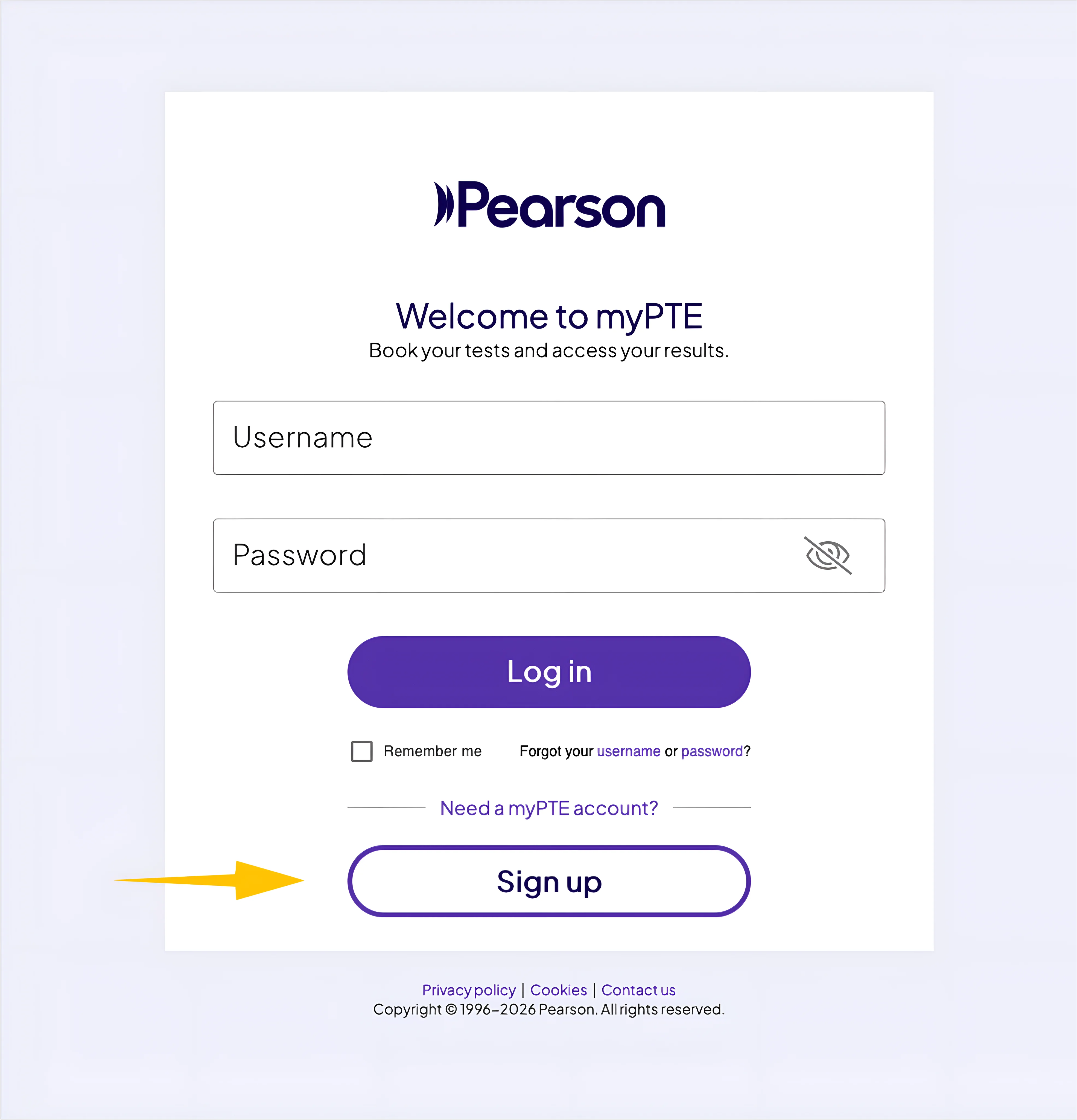
Open the official myPTE sign-in page. If you do not already have an account, select Sign up and follow the instructions to create one. If you already have a myPTE account, enter your username and password and select Log in.
Step 2: Enter Your Account Details
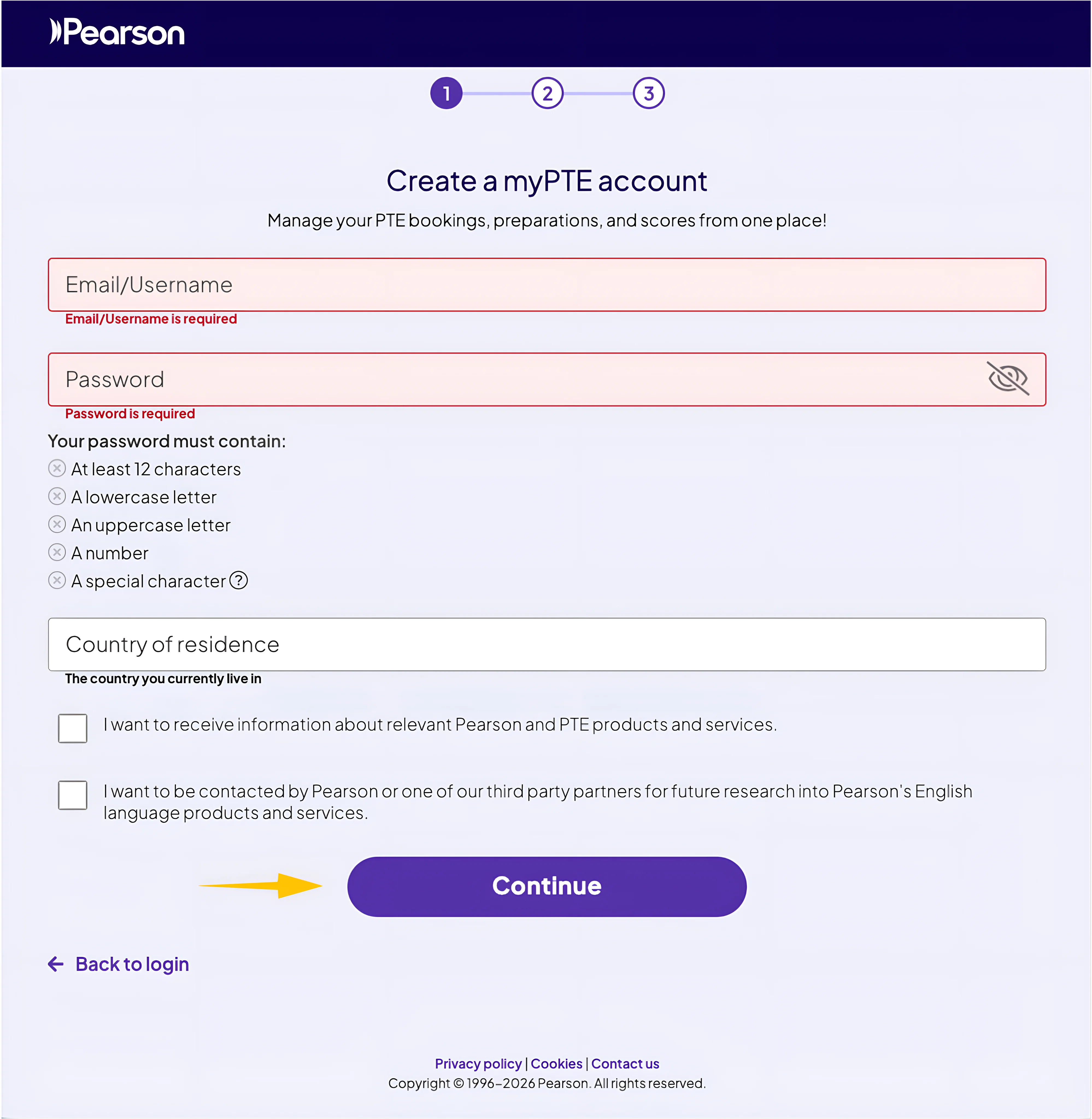
Enter your email address and create a password containing at least 12 characters, including uppercase and lowercase letters, a number, and a special character.
Select your current country of residence, choose whether you want to receive optional Pearson communications, and click Continue.
Step 3: Choose Your Goal and Book PTE Core
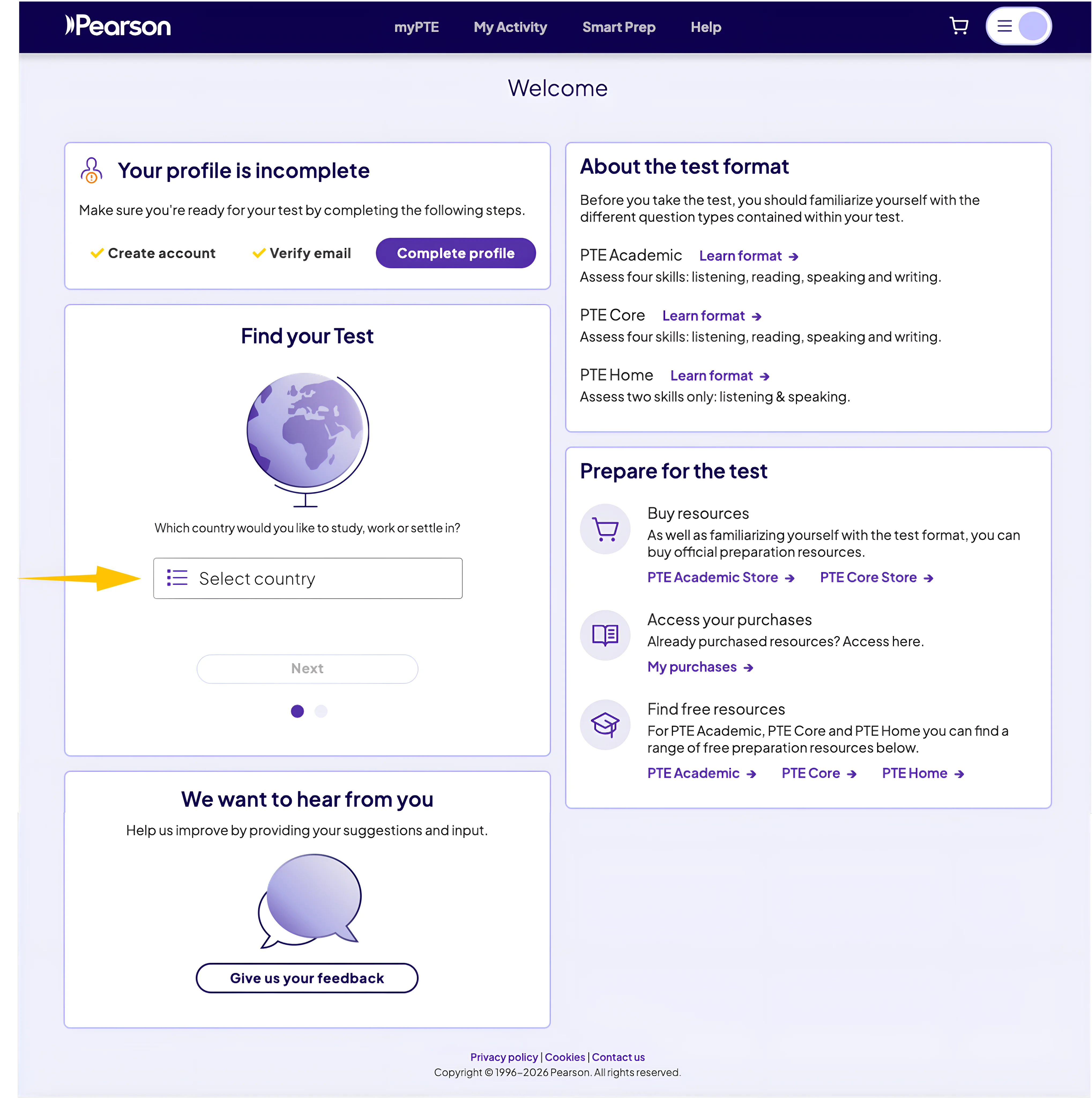
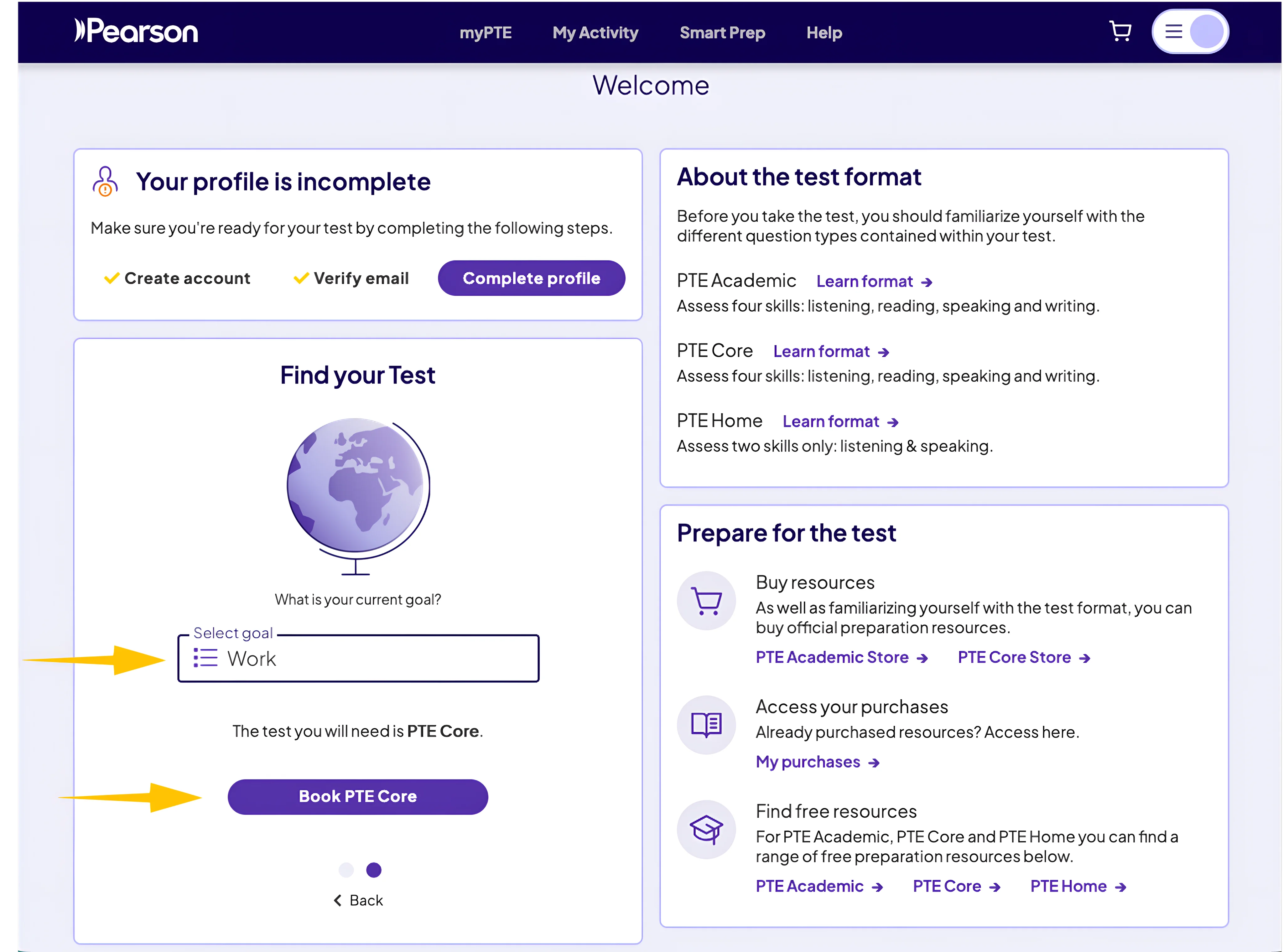
On the myPTE dashboard, open the Select country menu under Find your Test.
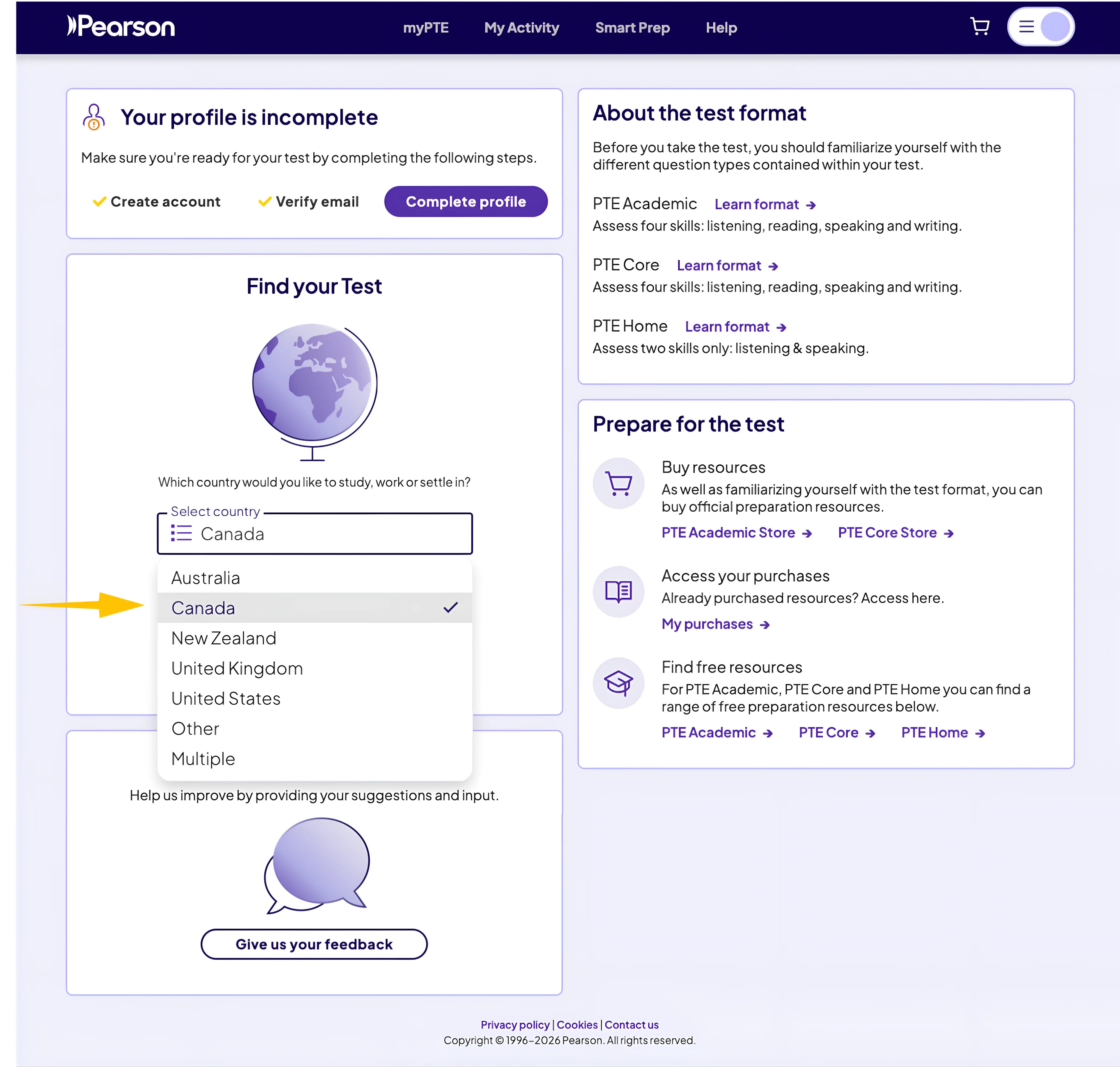
Choose Canada as the country where you plan to work, study, or settle. Then select Next to continue.
Select Work as your current goal. myPTE will then identify PTE Core as the appropriate test. Click Book PTE Core to begin choosing your test location and appointment.
Step 4: Choose a Test Centre, Date, and Time
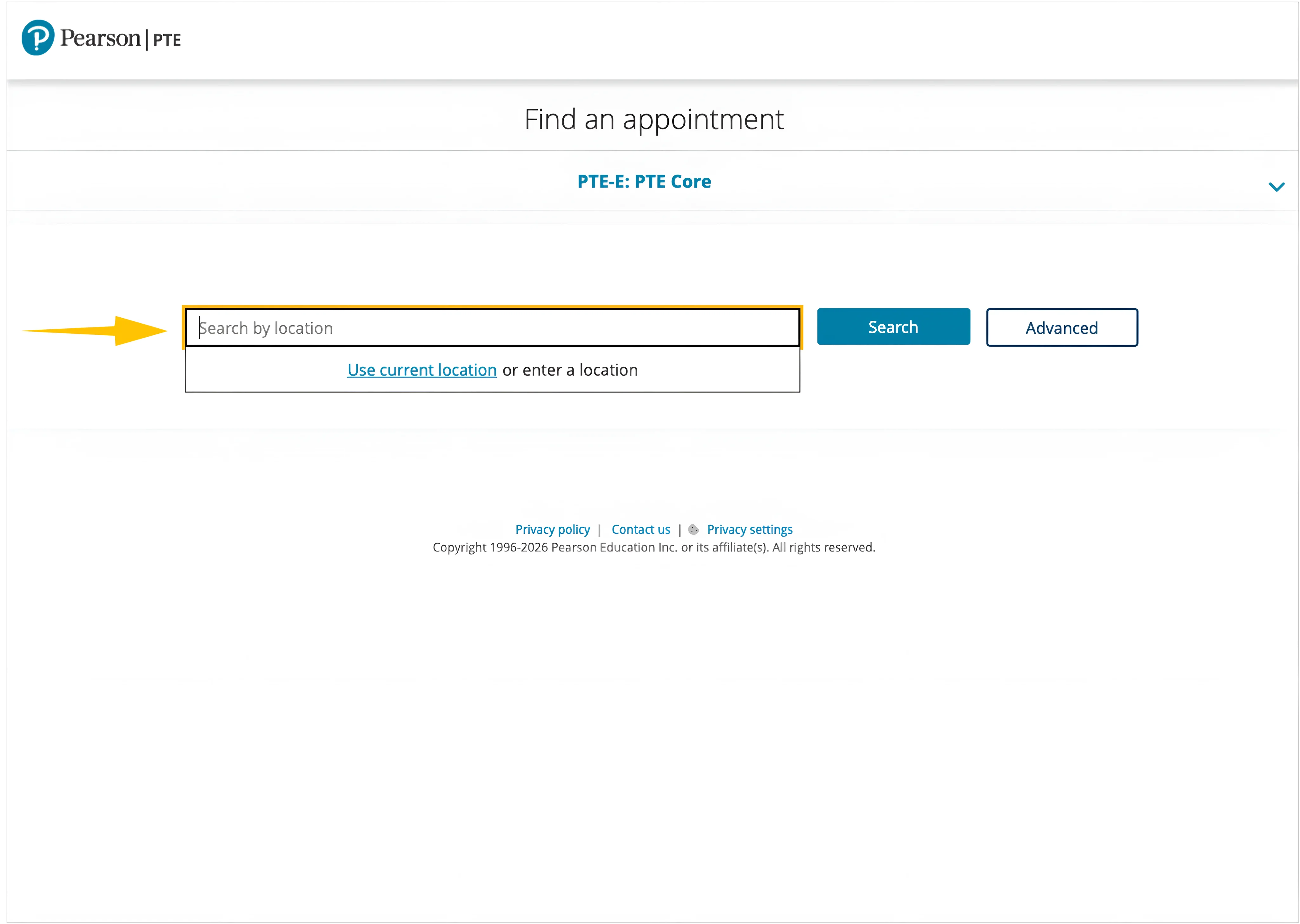
Confirm that PTE Core is selected, then enter your city, postcode, or preferred area in the Search by location box. You can also select Use current location to find nearby test centres. Click Search to view available locations and appointments.
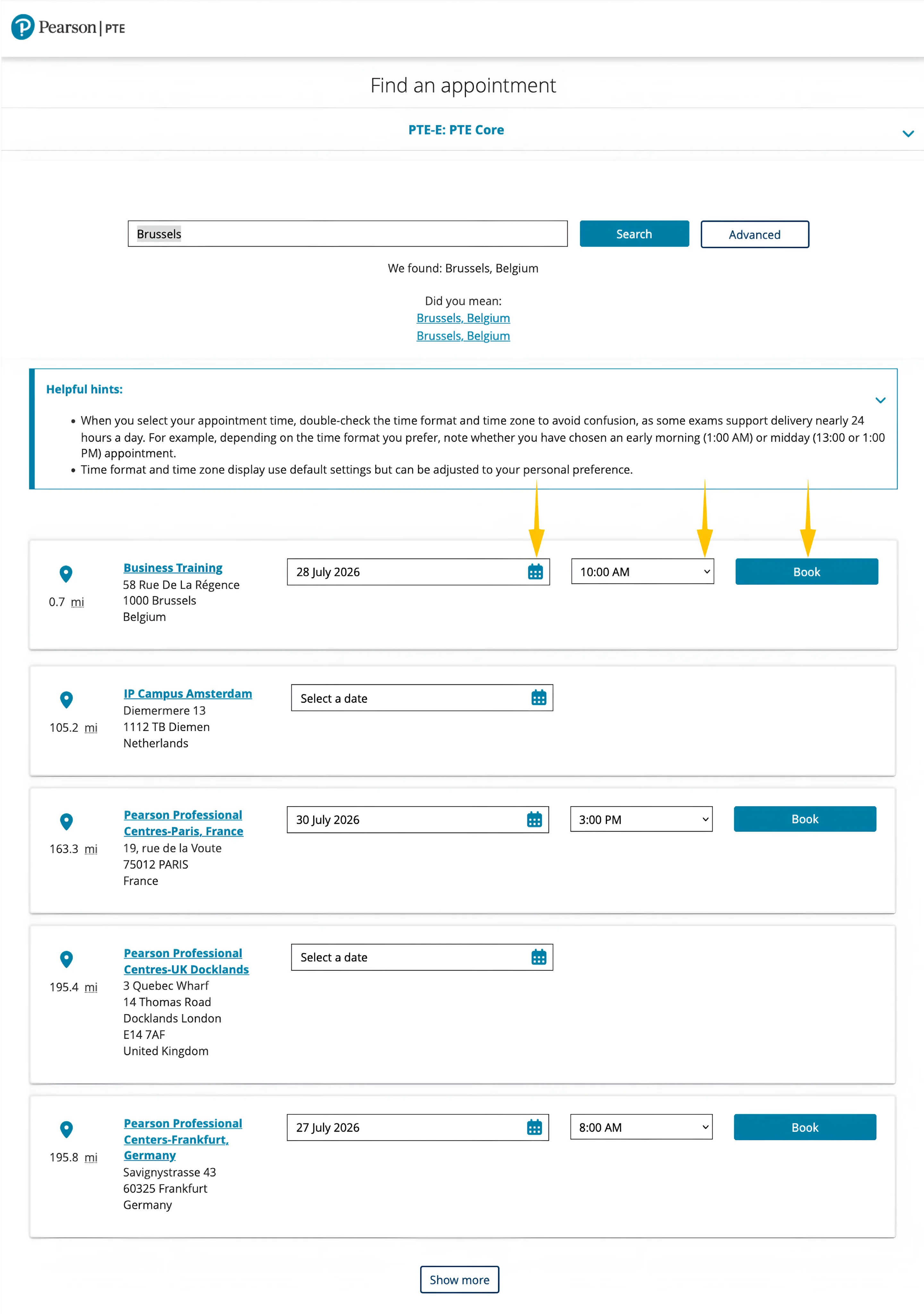
Review the available test centres and check their addresses and distance from your selected location. Choose an available date and time, making sure the time format and time zone are correct, and then click Book beside your preferred appointment.
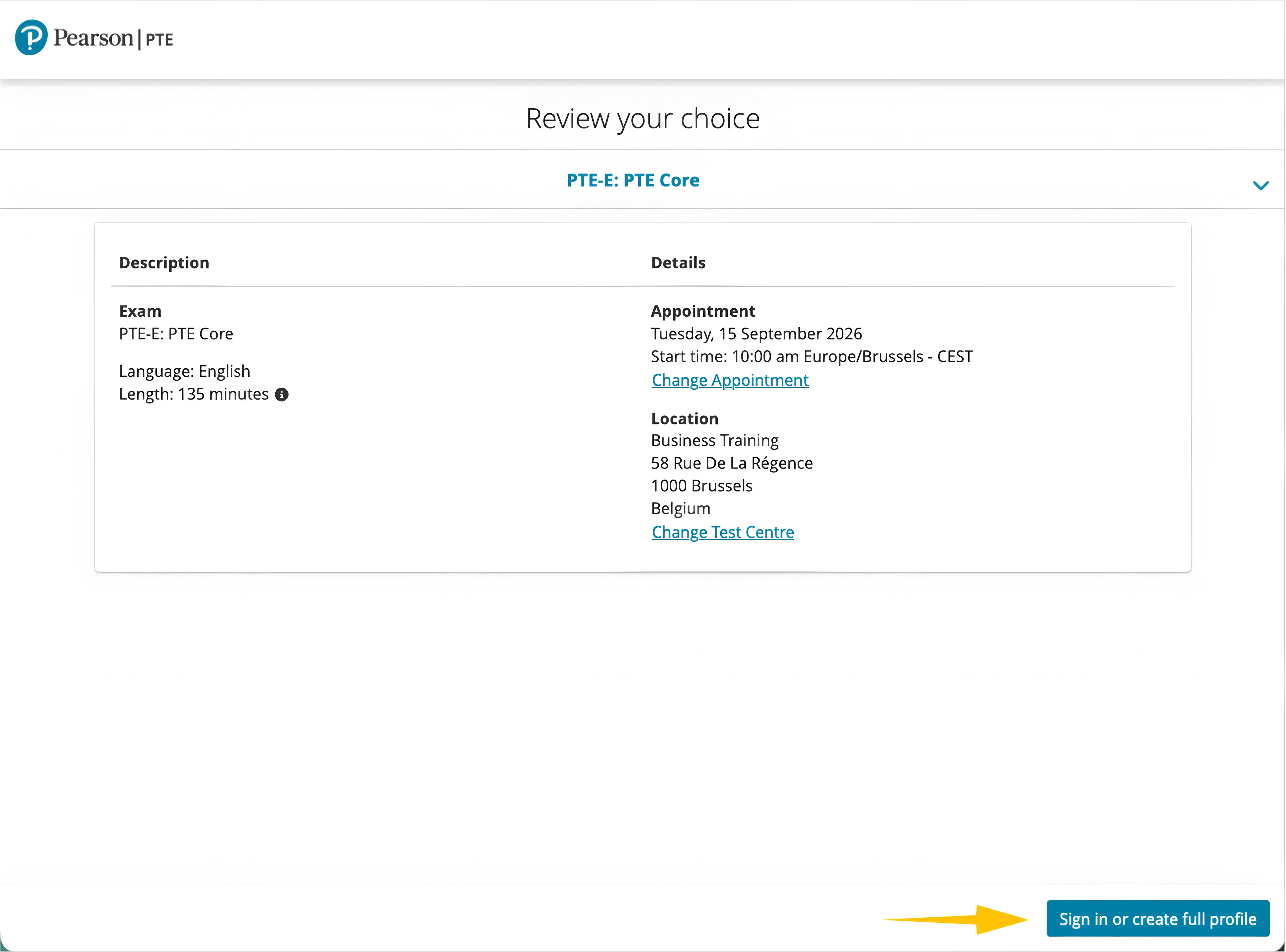
Check that the test type, date, start time, time zone, and test-centre address are correct. Use Change Appointment or Change Test Centre if needed. When everything is correct, click Sign in or create full profile to continue.
Step 5: Enter Your Identity and Contact Details
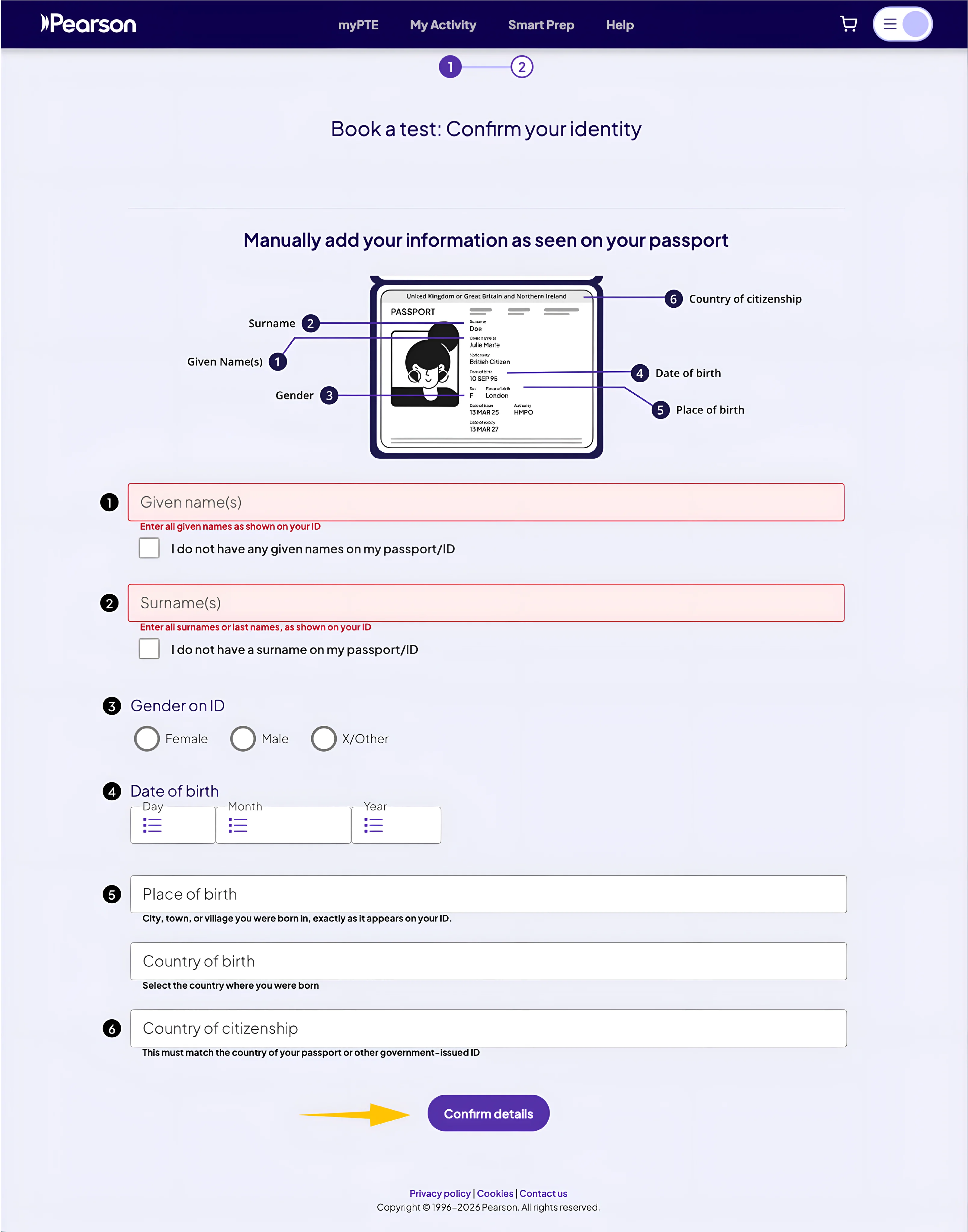
Enter your given name, surname, gender, date of birth, place and country of birth, and country of citizenship exactly as they appear on your passport or accepted ID.
Check every detail carefully, as mismatched information may cause problems on test day. Then click Confirm details.
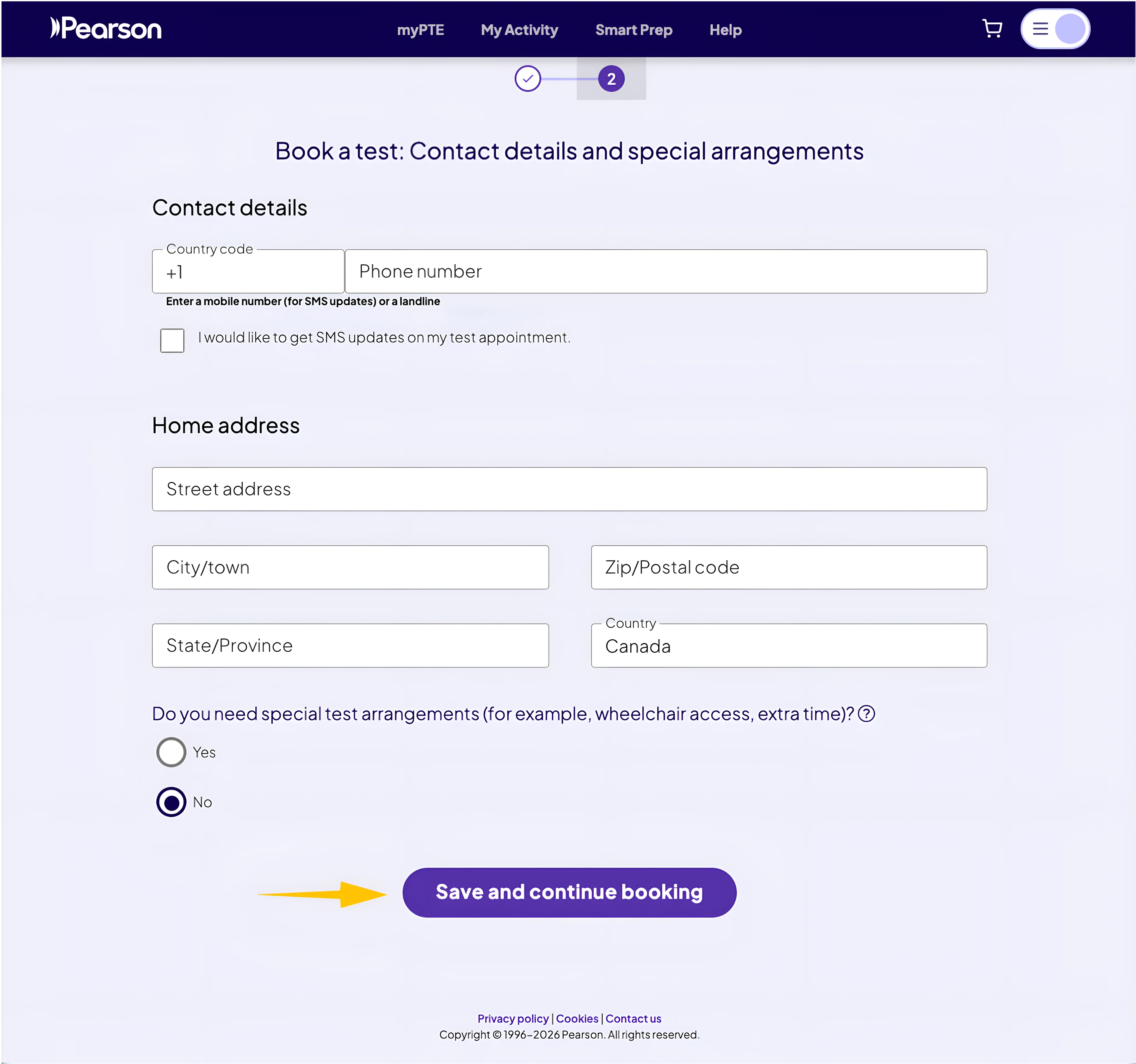
Enter your phone number and home address, and choose whether you want to receive SMS updates about your appointment. Indicate whether you require any special test arrangements, such as wheelchair access or extra time. Then click Save and continue booking.
Step 6: Complete the Booking Questions
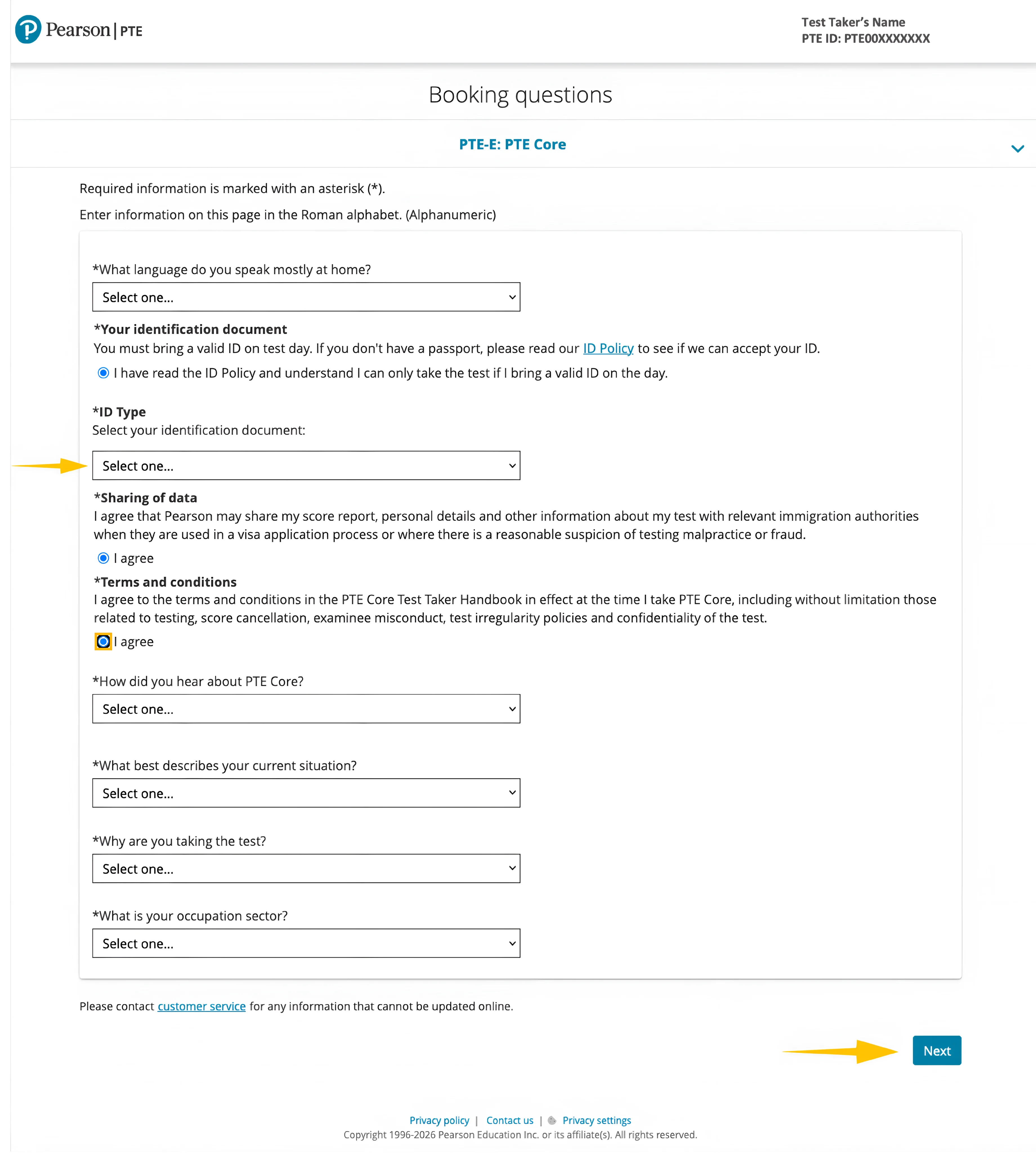
Answer the required background questions and select the identification document you will bring on test day. You must bring a valid passport or approved government-issued ID, and the name on your ID must exactly match the name used in your booking.
Confirm that you have read the ID Policy, agree to the sharing of relevant data, accept the PTE Core terms and conditions, and then click Next.
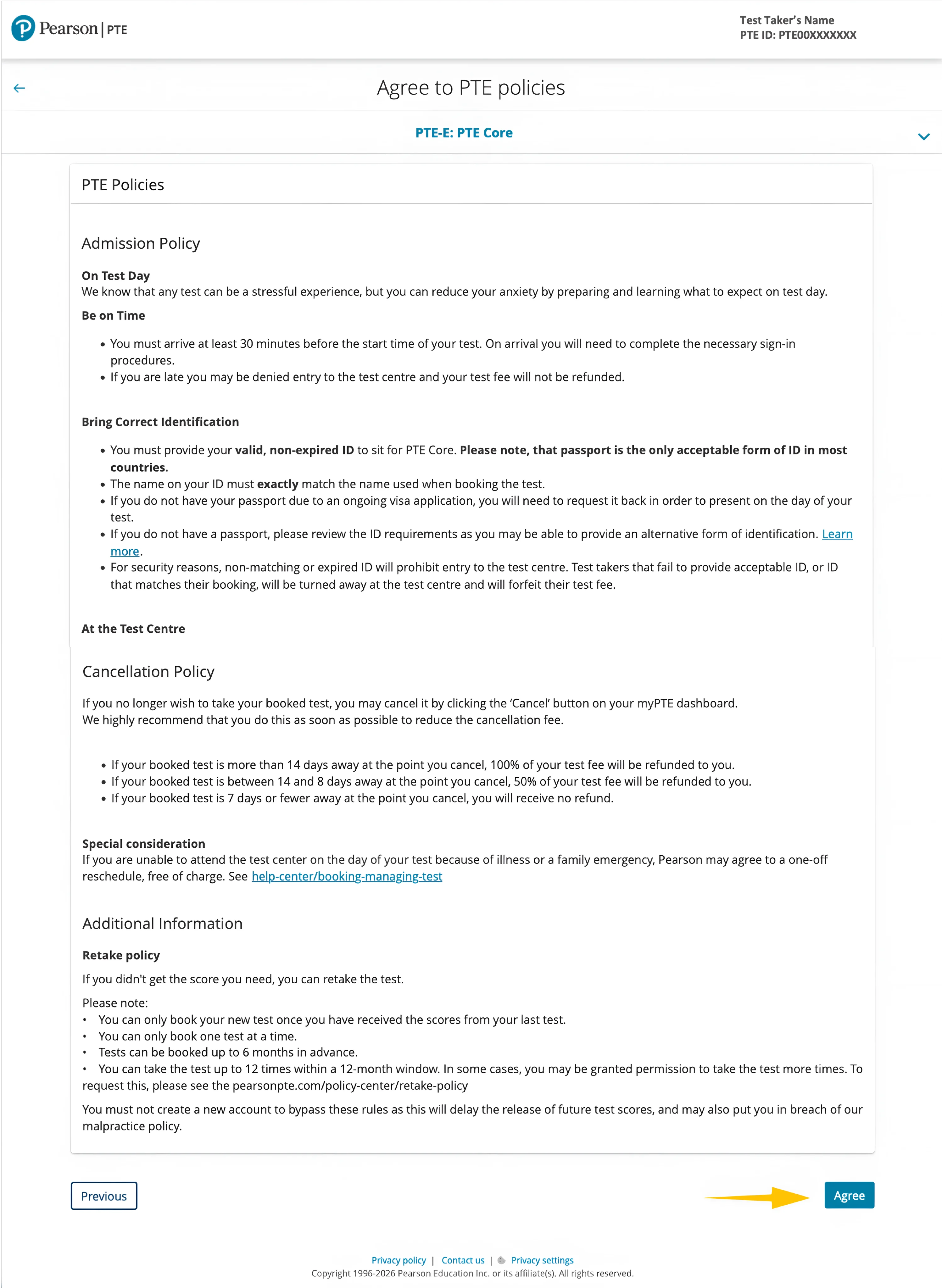
Read the admission, identification, cancellation, and retake policies carefully. You must arrive at least 30 minutes before your test and bring a valid, non-expired ID that exactly matches your booking details. Cancellation refunds depend on how early you cancel. After reviewing the information, click Agree.
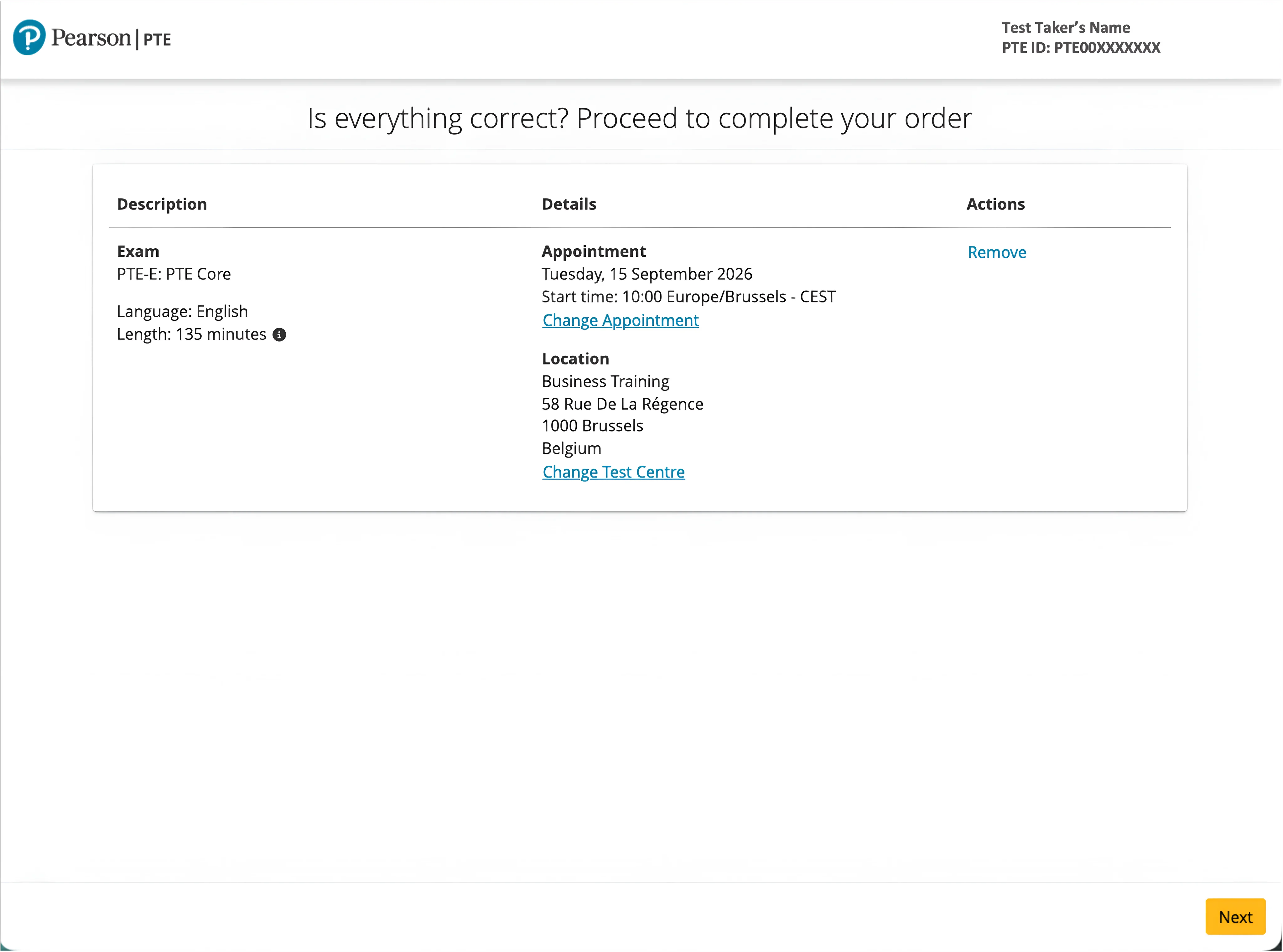
Check the test type, date, start time, time zone, and test-centre address one final time. Use Change Appointment or Change Test Centre if anything is incorrect. When all details are correct, click Next to proceed to payment.
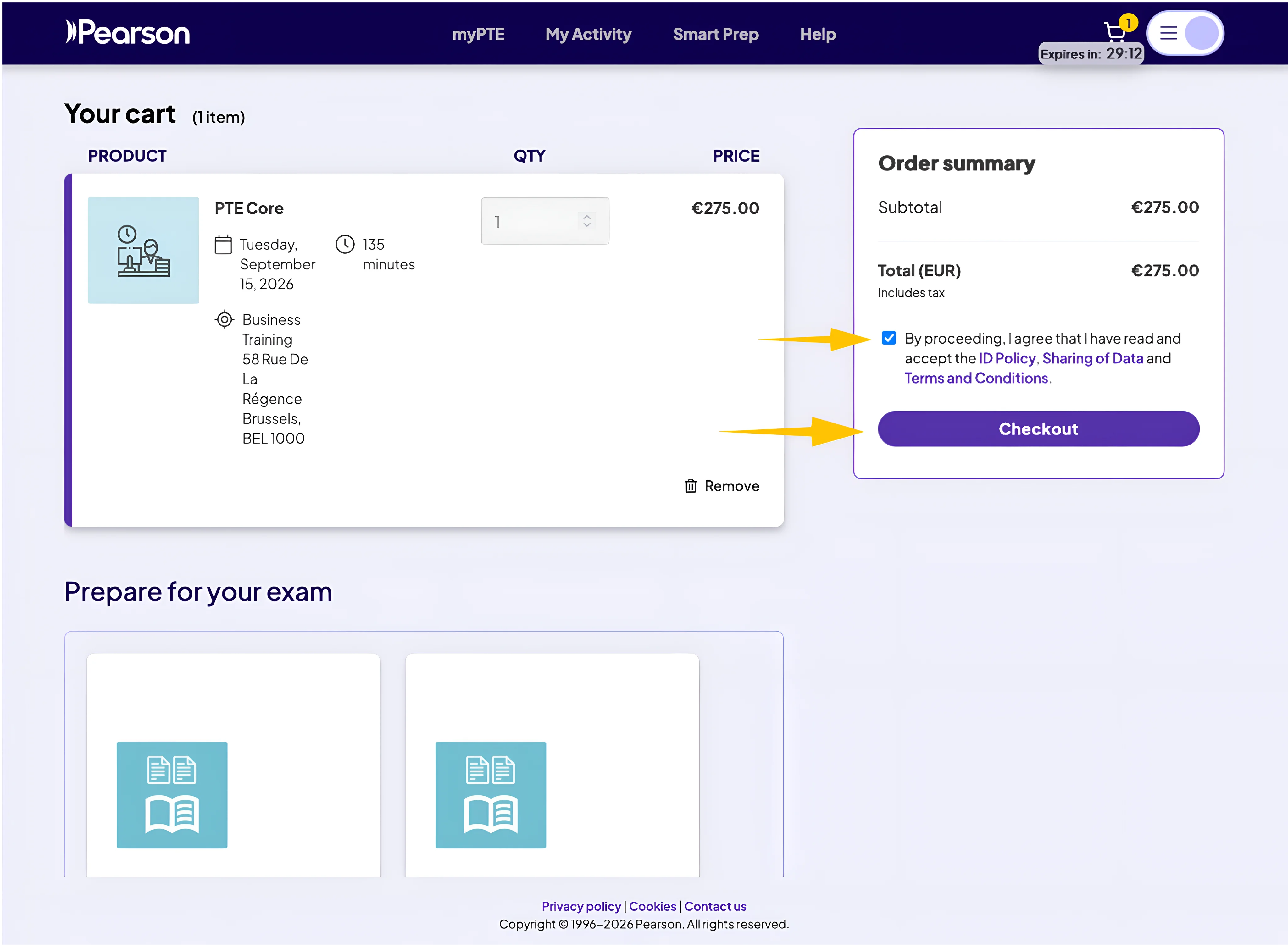
Step 7: Review Your Cart and Proceed to Checkout
Confirm the test date, test centre, duration, and total booking fee. Tick the box to accept the ID Policy, Sharing of Data, and Terms and Conditions, then click Checkout. Complete this step before the reservation timer expires.
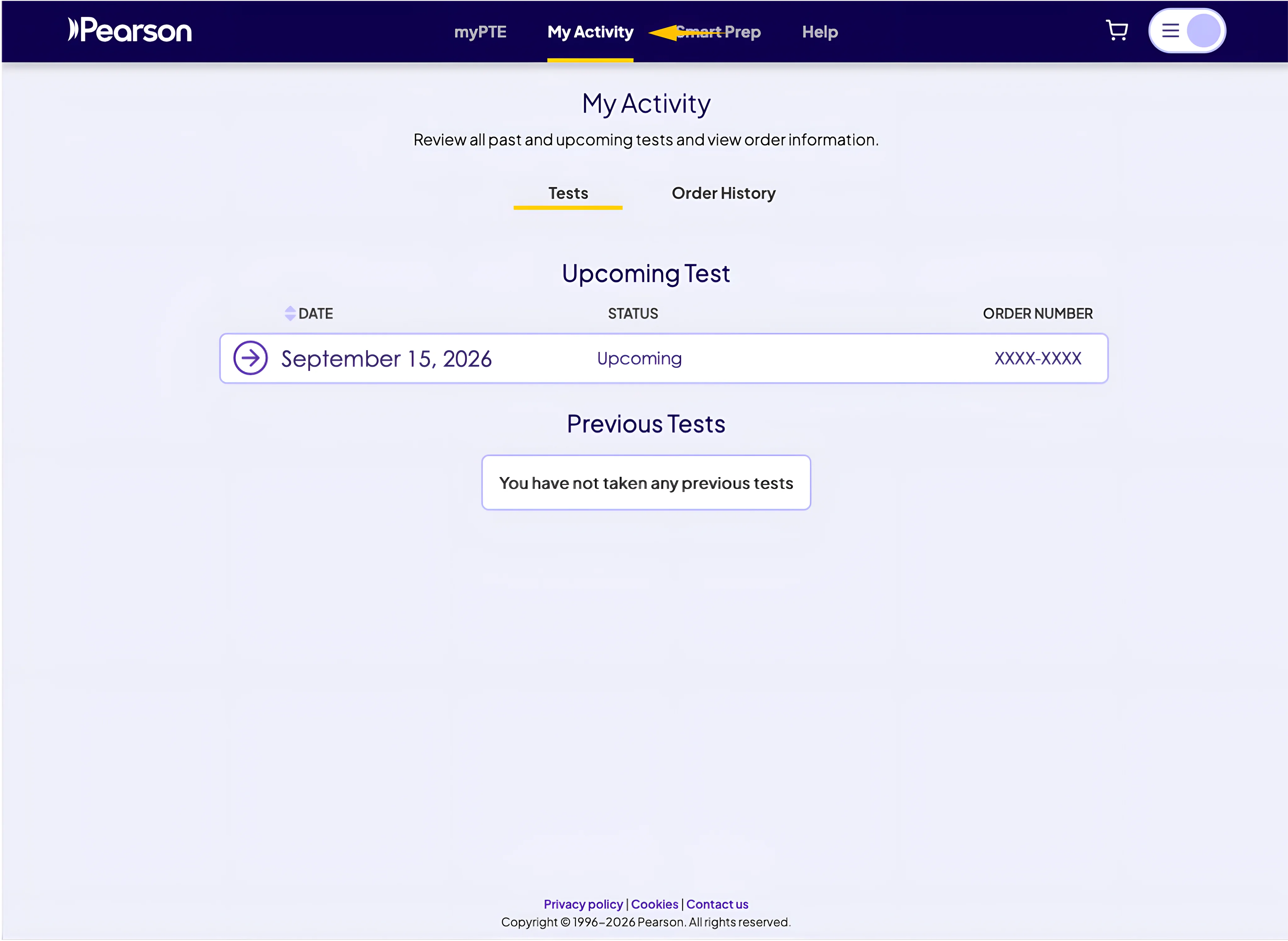
After completing payment, you can open My Activity to confirm that your PTE Core appointment appears under Upcoming Test. Select the appointment to review the full booking details, and check Order History if you need your payment or order information.
Important Points to Remember
- Follow the steps in this guide carefully to make sure you select PTE Core, rather than PTE Academic or PTE Home.
- In myPTE, choose Canada as your destination and Work as your goal; the system should then recommend PTE Core.
- Enter your personal details exactly as they appear on your passport or approved government-issued ID.
- Bring a valid, non-expired ID on test day. The name must exactly match your booking.
- Double-check the test type, test centre, date, time, and time zone before paying.
- Arrive at least 30 minutes early. Late arrival may result in refused entry without a refund.
- Review the cancellation policy before confirming your appointment.
- Complete payment before the reservation timer expires, then check My Activity to confirm that your booking appears under Upcoming Test.
How Much Does PTE Core Test Booking Cost?
The PTE Core test fee depends on the country where you take the test. Pearson provides the current price through its test-centre and fee finder and during the official booking process.
Can You Reschedule or Cancel a PTE Core Booking?
Yes. You can manage your appointment through your myPTE account.
Under Pearson’s currently published refund policy:
- You can reschedule without a rescheduling fee at least 14 full calendar days before the test.
- When fewer than 14 days remain, you generally need to cancel the appointment and make a new booking.
- Cancelling at least 14 full calendar days before the test qualifies for a full refund.
- Cancelling between 13 and 8 full calendar days before the test qualifies for a 50% refund.
- Cancelling with fewer than 7 full calendar days remaining does not normally qualify for a refund.
Check the policy displayed in your account before changing an appointment because terms may be updated.
Once your test is booked, start preparing with targeted PTE Core practice for each question type. As your test date approaches, complete a full PTE Core mock test under timed conditions to become familiar with the format, check your current performance, and identify the areas that need further practice.
Frequently Asked Questions
Where do I book PTE Core?
Book through your personal myPTE account. Create an account if you do not already have one, then follow the booking steps to choose PTE Core, a test centre, and an appointment.
How do I make sure I book PTE Core and not PTE Academic?
In myPTE, choose Canada as your destination and Work as your goal. The system should then recommend PTE Core. Always confirm the test type before you pay.
What ID do I need on test day?
Bring a valid, non-expired passport or approved government-issued ID. The name on your ID must exactly match the name used in your booking.
Can I reschedule or cancel my PTE Core booking?
Yes, through myPTE. Refund and reschedule rules depend on how many full calendar days remain before the test. Check Pearson’s current refund policy and the terms shown in your account before making changes.