

The required steps depend on your immigration program and the instructions shown in your IRCC account. You may need to enter your test details in the application, share the result electronically, or complete both steps.
For Express Entry, IRCC requires applicants to enter their language test results and may also request the test certificate number and PIN.
Enter Your PTE Core Result in Your Express Entry Profile
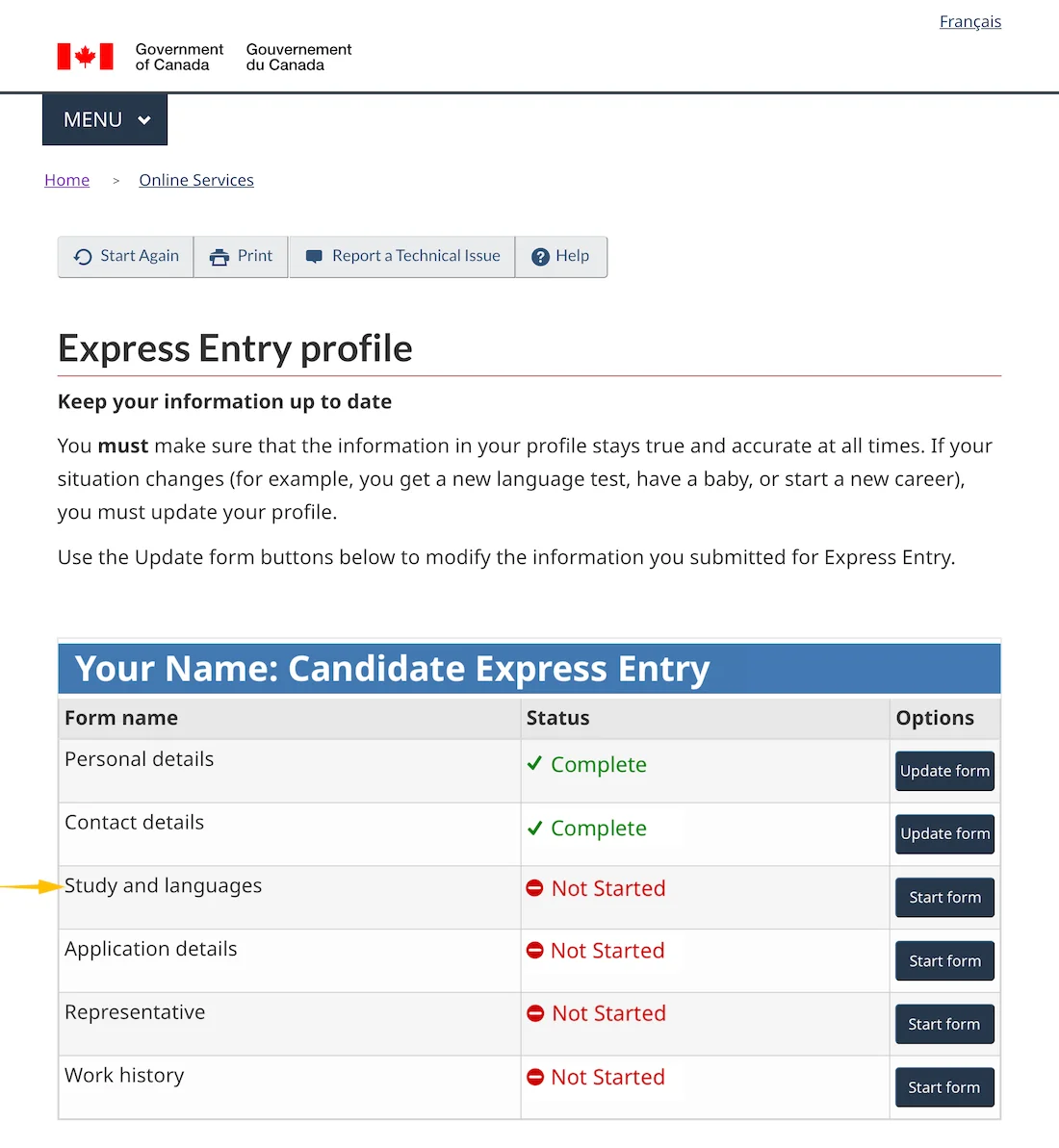
1. Open the Study and Languages Form
Sign in to your IRCC account and open your Express Entry profile. Under the list of profile forms, find Study and languages and select Start form.
2. Select PTE Core as Your Language Test
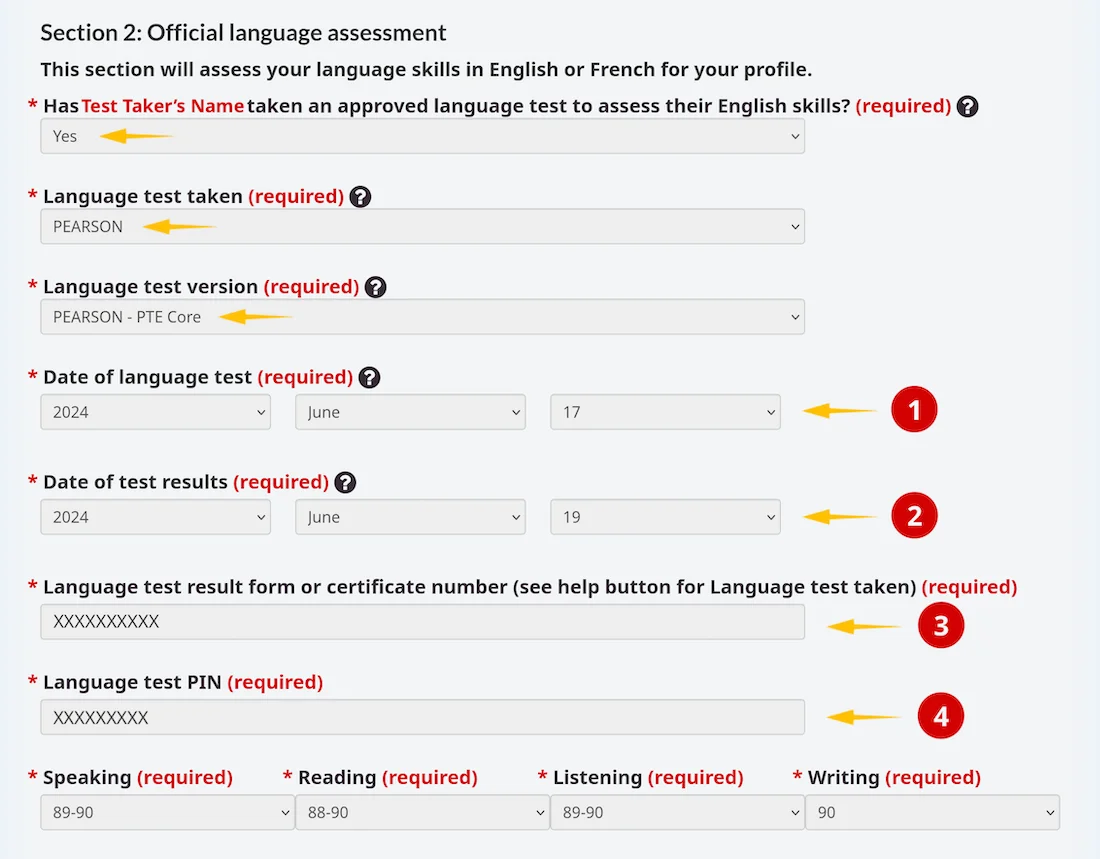
In Section 2: Official language assessment, complete the first three fields as follows:
- Has the applicant taken an approved language test? → Yes
- Language test taken → PEARSON
- Language test version → PEARSON – PTE Core
You can then enter the test dates, identification numbers and individual skill results.
3. Copy the Information from Your Score Report
The names used in the IRCC form are slightly different from those shown on your Pearson Score Report. Enter the information as follows:
| IRCC application field | Information from your PTE Core Score Report |
|---|---|
| Date of language test | Test Date |
| Date of test results | Issue Date |
| Language test result form or certificate number | Score Report Code |
| Language test PIN | Registration ID |
| Speaking, Reading, Listening and Writing | Select the range containing each individual score |
For the four language skills, use the individual communicative skill scores, not your overall PTE Core score. The available score ranges may differ between Speaking, Reading, Listening and Writing, so check each dropdown separately.
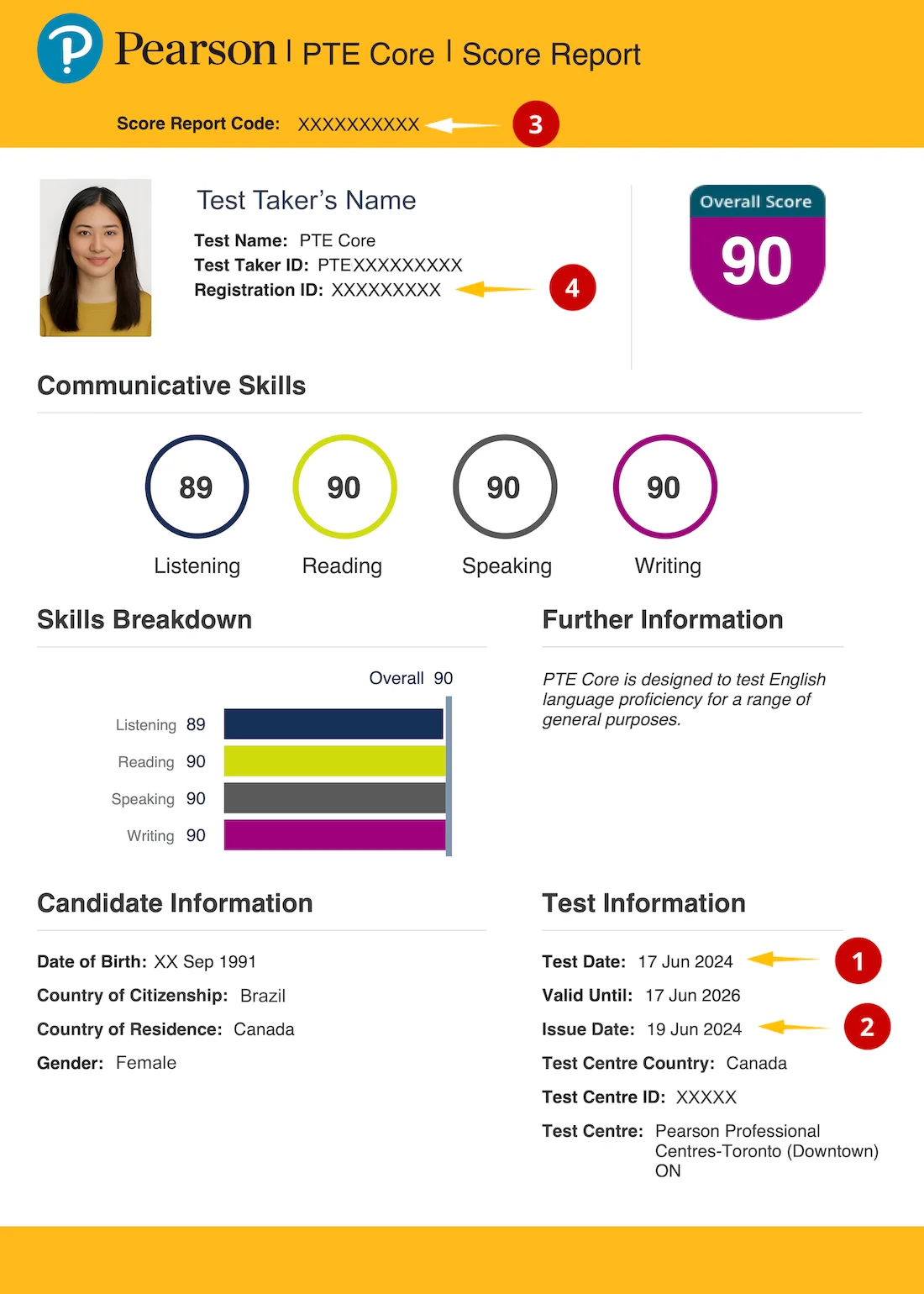
Important: Enter the Score Report Code and Registration ID as shown in the example report. Do not use your Test Taker ID, Overall Score or Valid Until date.
Share Your PTE Core Result Through myPTE
In most cases, you do not need to send your result separately through myPTE. For Express Entry, you enter your PTE Core scores and the identification details from your score report in your application, allowing IRCC to verify the result electronically.
Use the Send score option in myPTE when:
- Your immigration program or document checklist specifically asks you to share the result electronically.
- IRCC requests direct score sharing after you submit your application.
- You want to make your result available to IRCC in addition to providing the required Score Report Code.
Sharing your score through myPTE is free, but it does not replace completing the language-test section of your application or providing any documents requested by IRCC.
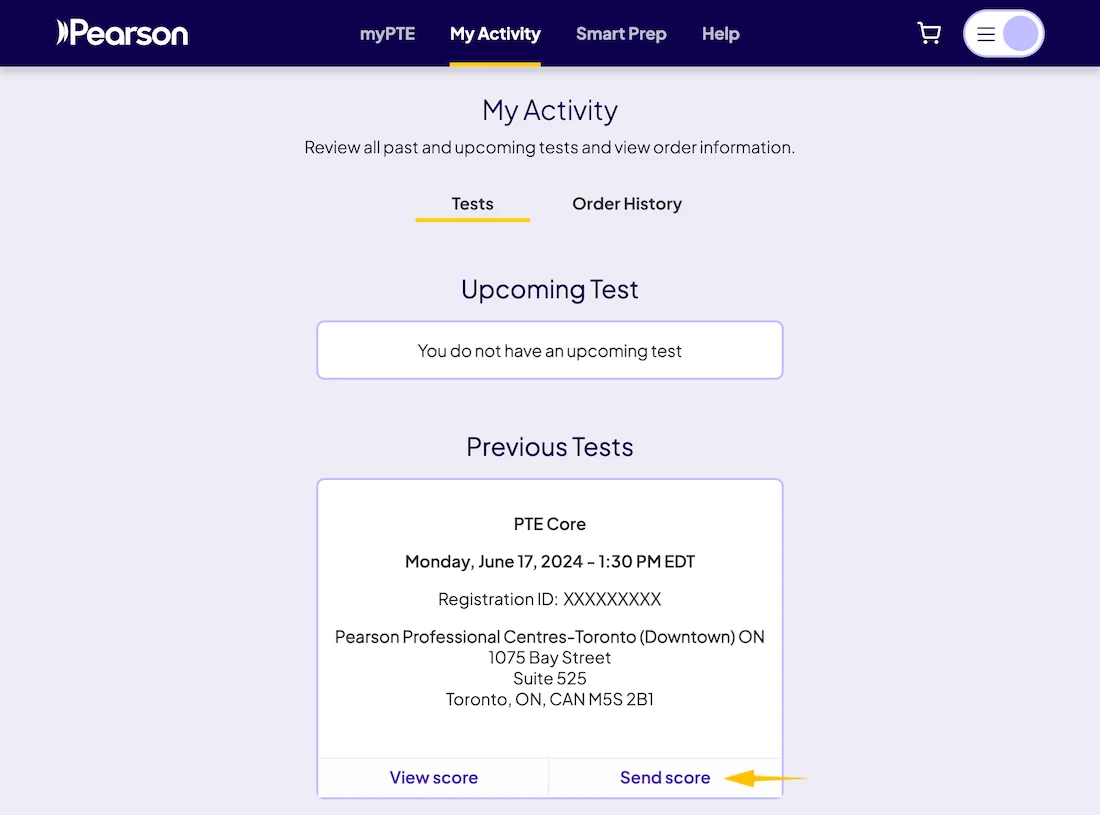
1. Open Your Test in My Activity
Sign in to myPTE and open My Activity. Under Previous Tests, locate your PTE Core test and select Send score.
2. Search for IRCC
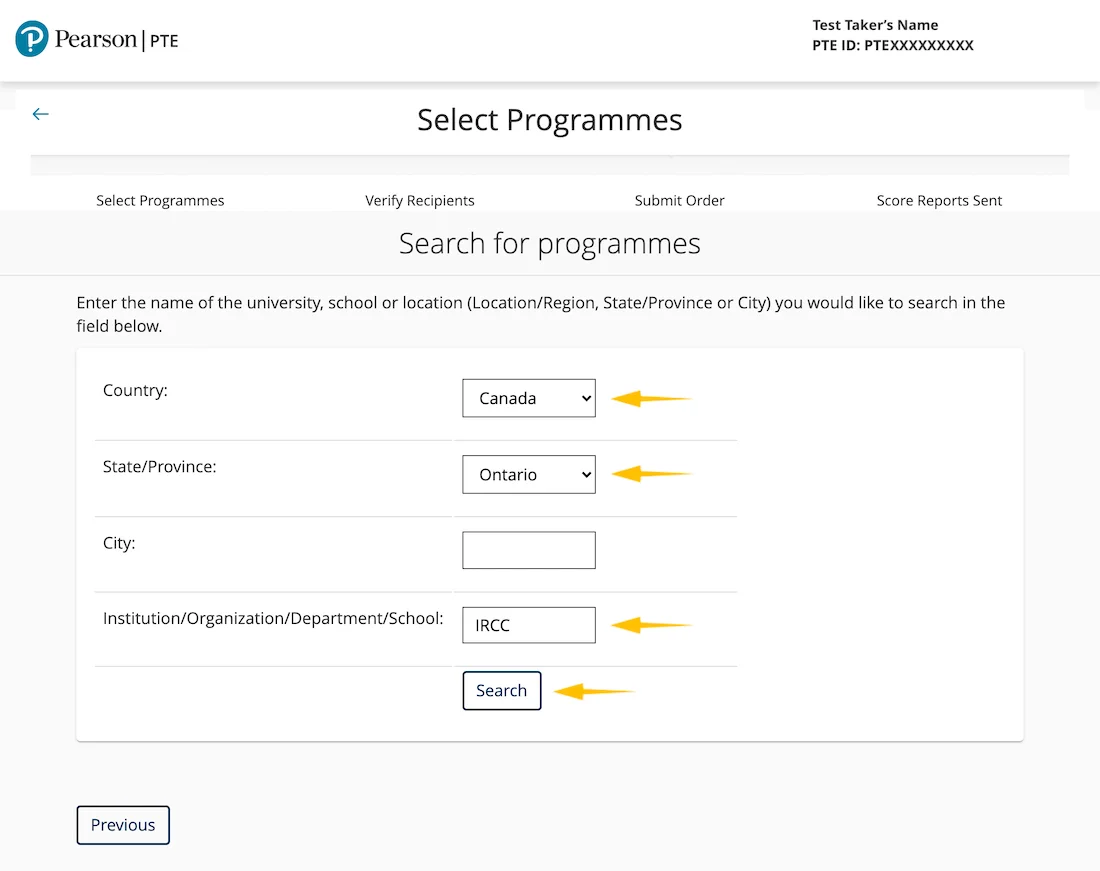
On the Select Programmes page, enter the following information:
- Country: Canada
- Institution/Organization/Department/School: IRCC
You can leave the City and Province fields blank. Select Search to view the available recipients.
3. Select the Correct IRCC Recipient
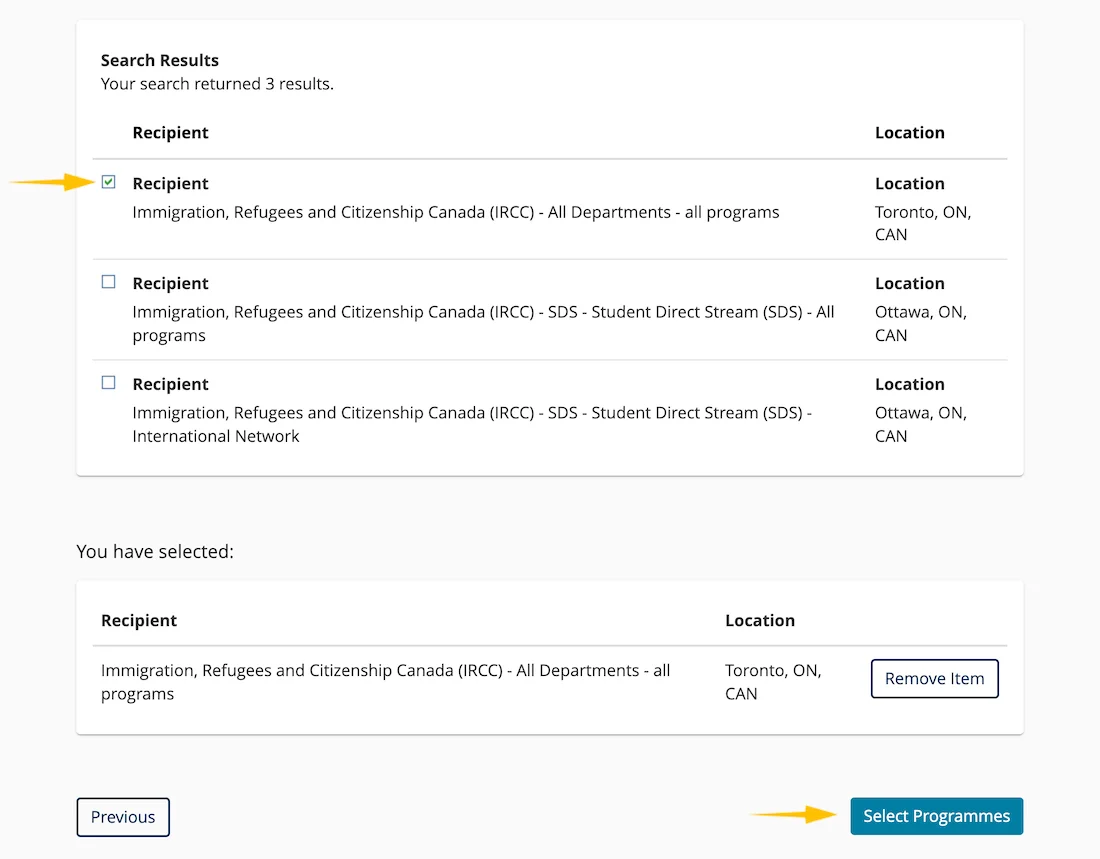
Review the available search results and select the IRCC recipient that matches your immigration program or the instructions provided in your application. The options displayed may vary, so check the recipient name carefully before continuing.
After making your selection, choose Select Programmes.
4. Verify the Recipient
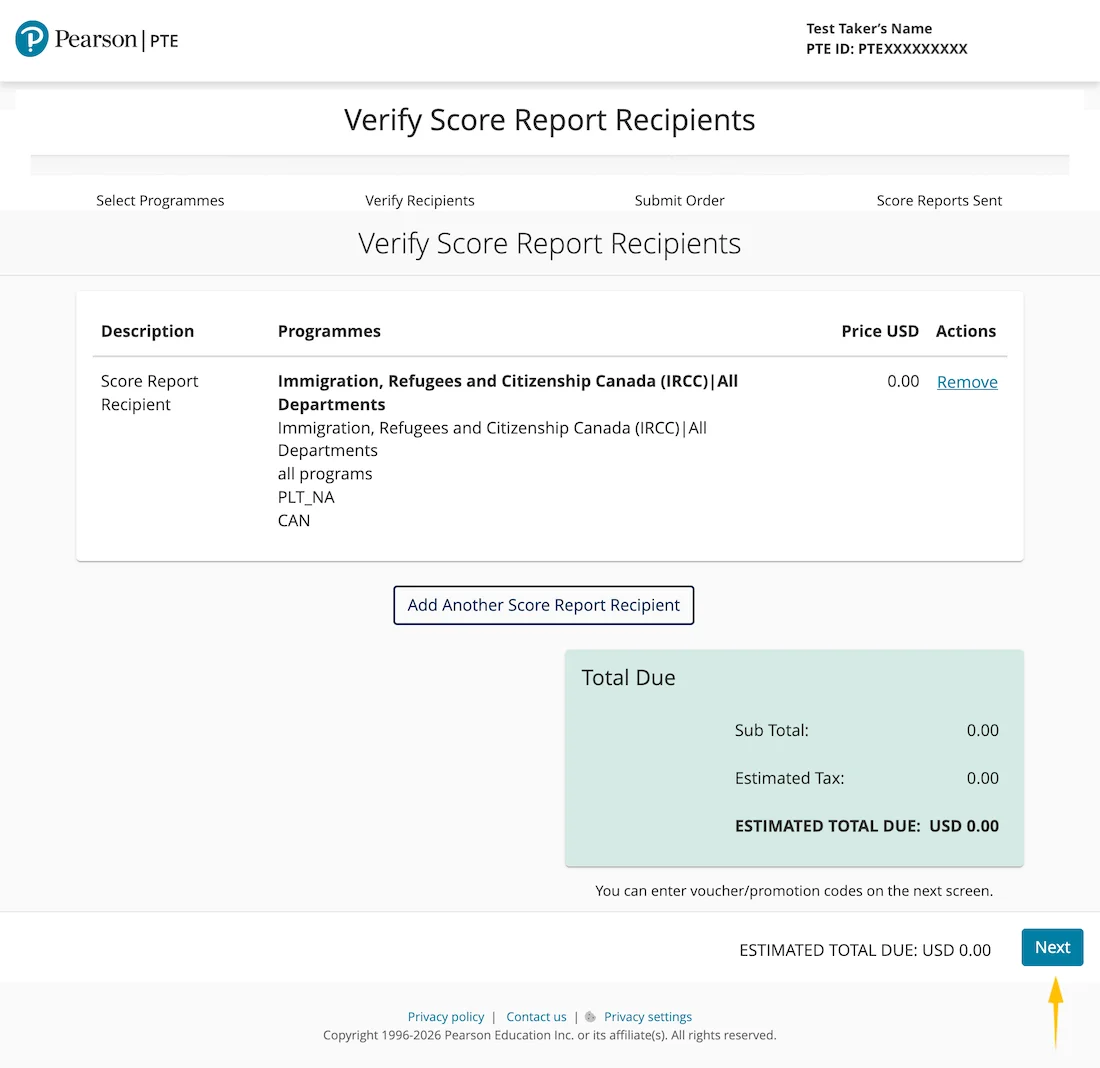
Check that the selected recipient is:
Immigration, Refugees and Citizenship Canada (IRCC) | All Departments
The total amount should show USD 0.00, meaning there is no score-sending fee. Select Next to continue.
5. Submit the Request
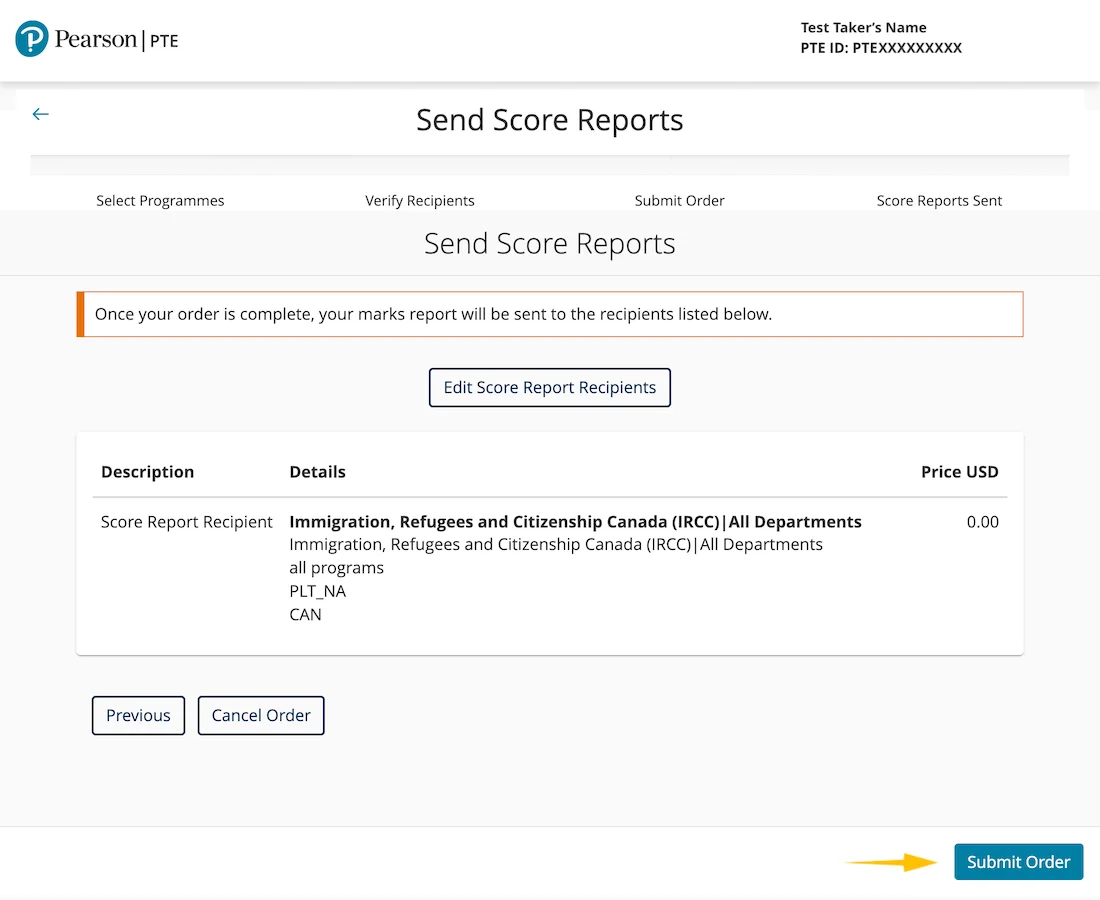
Review the recipient information one final time. If everything is correct, select Submit Order.
Your result will then be sent electronically to IRCC. Keep the submission confirmation for your records.
Important: IRCC verifies PTE Core results electronically. A downloaded or printed score report should not be used as a replacement for electronic verification. You should still keep the PDF score report for your records and enter your Score Report Code wherever it is requested in your immigration application.
Get Ready for Your PTE Core Test
Before booking or submitting your results, make sure you understand the PTE Core test format and what to expect in each part of the exam. You can then build your skills with targeted PTE Core practice and use a full PTE Core mock test to practice under realistic test conditions.
For more guidance on scores, preparation, question types, and the exam process, explore our complete PTE Core guide.